Join Window Terminology
- By using this document user will learn about termonlogies og Join Window.
Prerequisites
- For this example we are using Insurance Claims.ds & Insurance.ds
Skill Level Required
- Basic knowledge of Joins & SQL.
Download join.jar file from link given join.zip
- After downloading the jar file, add it into the OPNBI. To add it into OPNBI follow this Link
Join Window Terminology
Refer this Link to know steps to reach Join Window. [Follow till steps No-5]
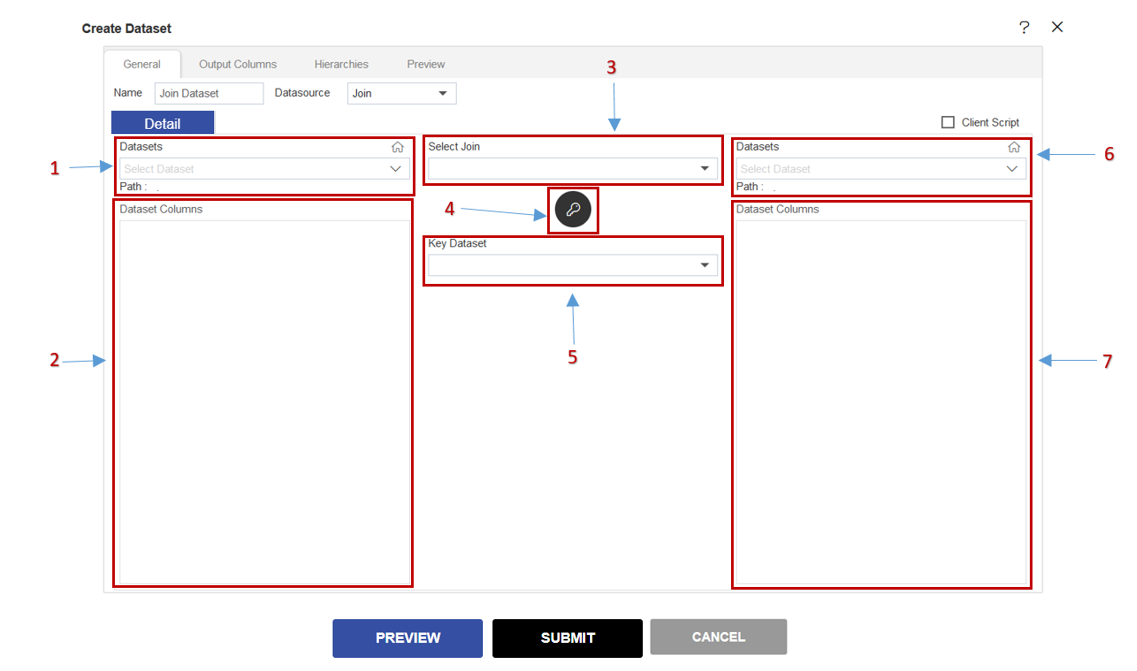
1. Datasets (Left-Side):-
- User can select any of required dataset available in drop-down. It will show the list of dataset available in their OPNBI login.
2. Dataset Columns (Left Side):-
- User can see the available columns of table in selected dataset.
3. Select Joins:-
A JOIN is used to combine rows from two or more tables, based on a related column between them.
There are three types of Joins available:-
- 1. Inner Join:-
Show the data which have matching values in both tables.
Click here to know how to create Dataset using Inner Join.
- 2. Left Outer Join:-
Shows the data from the left table, and the matched data from the right table.
Click here to know how to create Dataset using Left Outer Join.
- 3. Right Outer Join:-
Shows the data from the right table, and the matched data from the left table.
Click here to know how to create Dataset using Rift Outer Join.
4. Key Button:-
When User are creating dataset by using any joins & in the process when they clicks on that key button
 , it will redirect them to below page: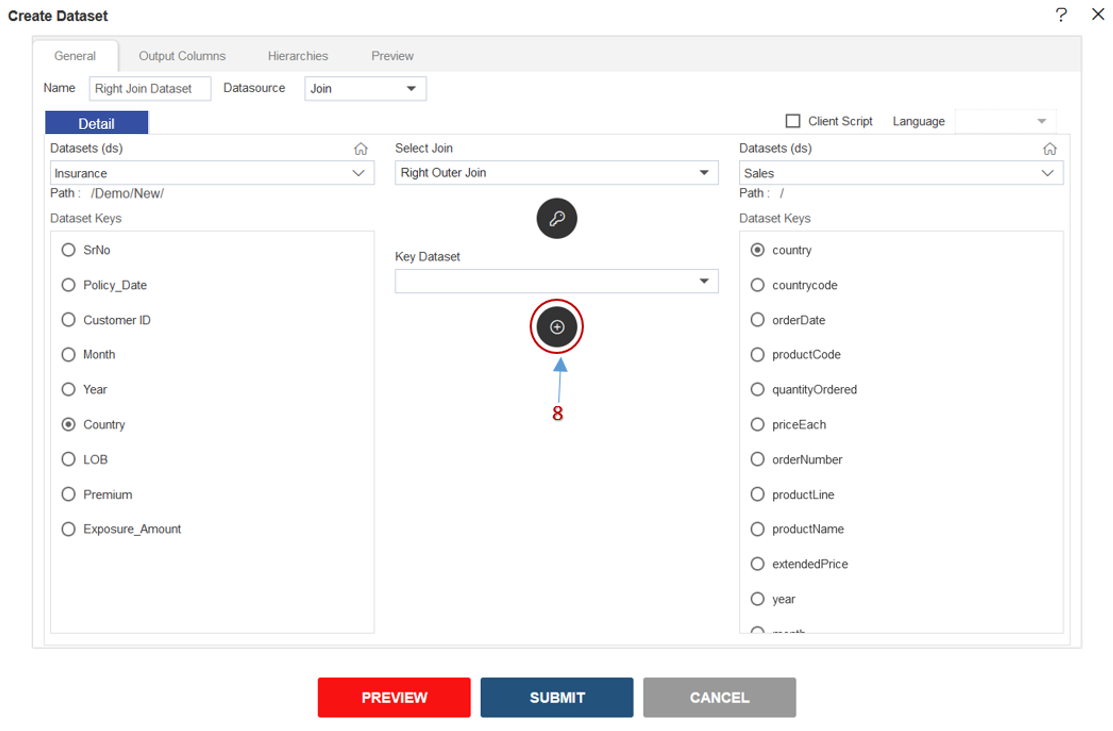
info
Image is for reference purpose only. User will get this window when they create dataset usning any join.
5. Key Dataset:-
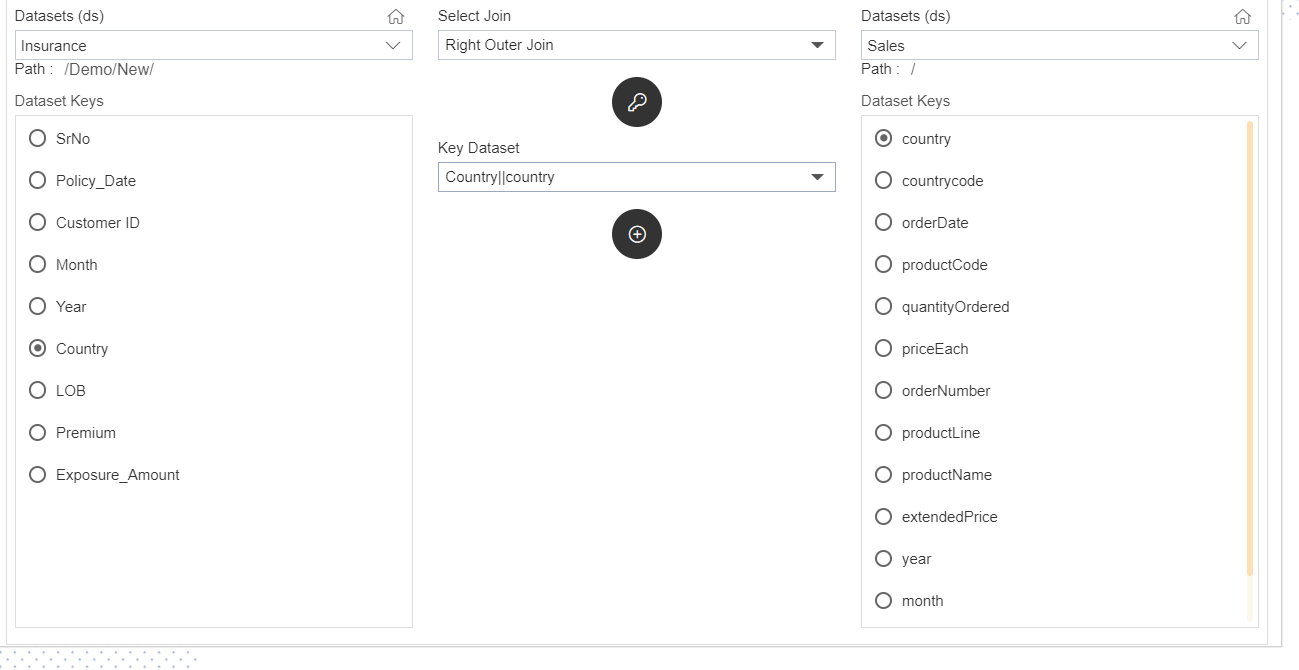
In this checkbox user can see the selected column from both the dataset which is used to join both selected dataset.
For example; user selected country column from both selected dataset to join them, then they will able to see their window like below:
6. Datasets (Right-Side):-
- User can select any of required dataset available in drop-down. It will show the list of dataset available in their OPNBI login.
7. Dataset Columns (Right Side):-
- User can see the available columns of table in selected other dataset.
8. (+) button:-
- In order to join 2 dataset we need to select one column from both dataset having matching data. after selecting this column click on (+) icon
 . Your join will be created & it will available in the Key Dataset.