Category Axis Labels
Category Axis Labels: This video contains how to use category axis labels for Chart in OPNBI.
tip
Only users with Dashboard privilege have access to this sectionr!
Read 5 minutes tutorial here.

Click on hamburger icon.

Click on dashboard tab and open Line Chart in edit mode.

The Edit menu box appears as you click on Line chart icon. And a widget gets added in content place automatically in dashboard.
In Formatting Property click on Category Axis Property.
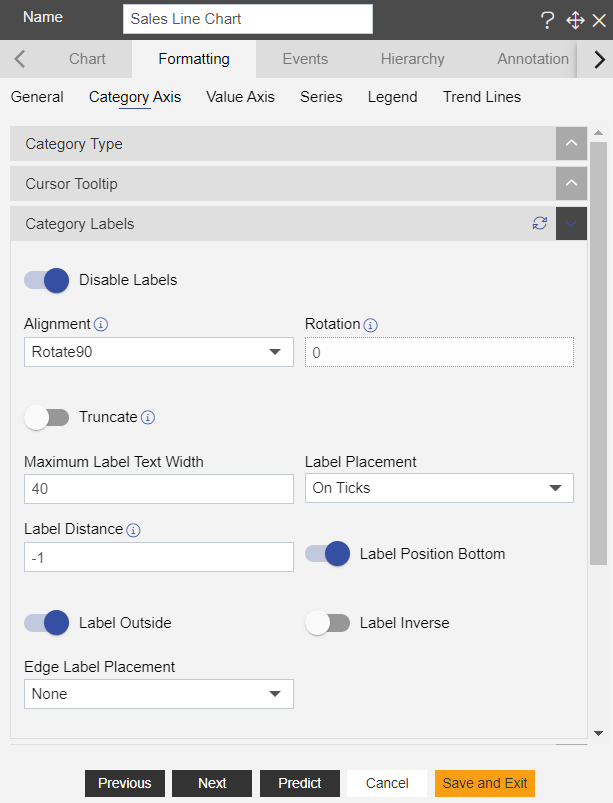
Enter Following details in Category Labels:
- Toggle Enable Labels
- Toggle Label Position Top
- Toggle Label Inside
- Alignment: Rotate 90
- Label Placement: On Ticks
Fill above details in edit box, As Shown in figure.
Click on Preview and Save and Exit.
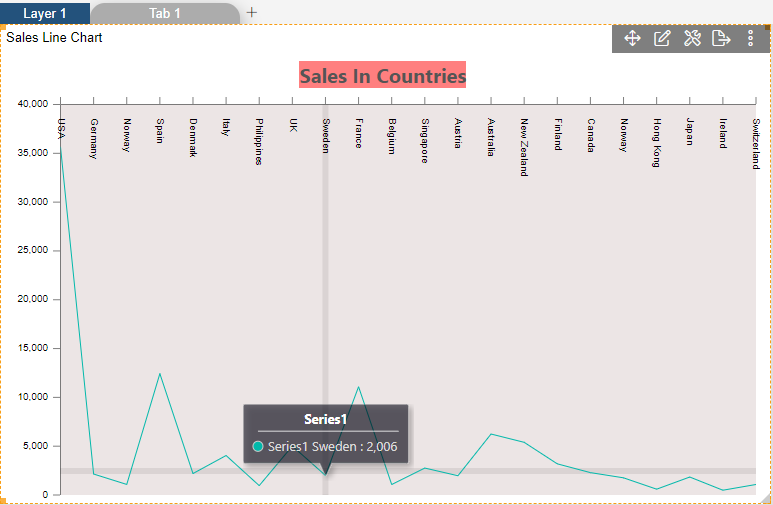
Now, match your Line chart with the below example, it should look like the figure below:
To know more about other Categorys Axis properties click on below links:-